Diagrams
The Diagrams module lets you create visual architecture diagrams using an embedded DrawIO editor — fully integrated with your card inventory. Drag cards onto the canvas, connect them with relations, drill into hierarchies, and recolor by any attribute — the diagram stays in sync with your EA data.
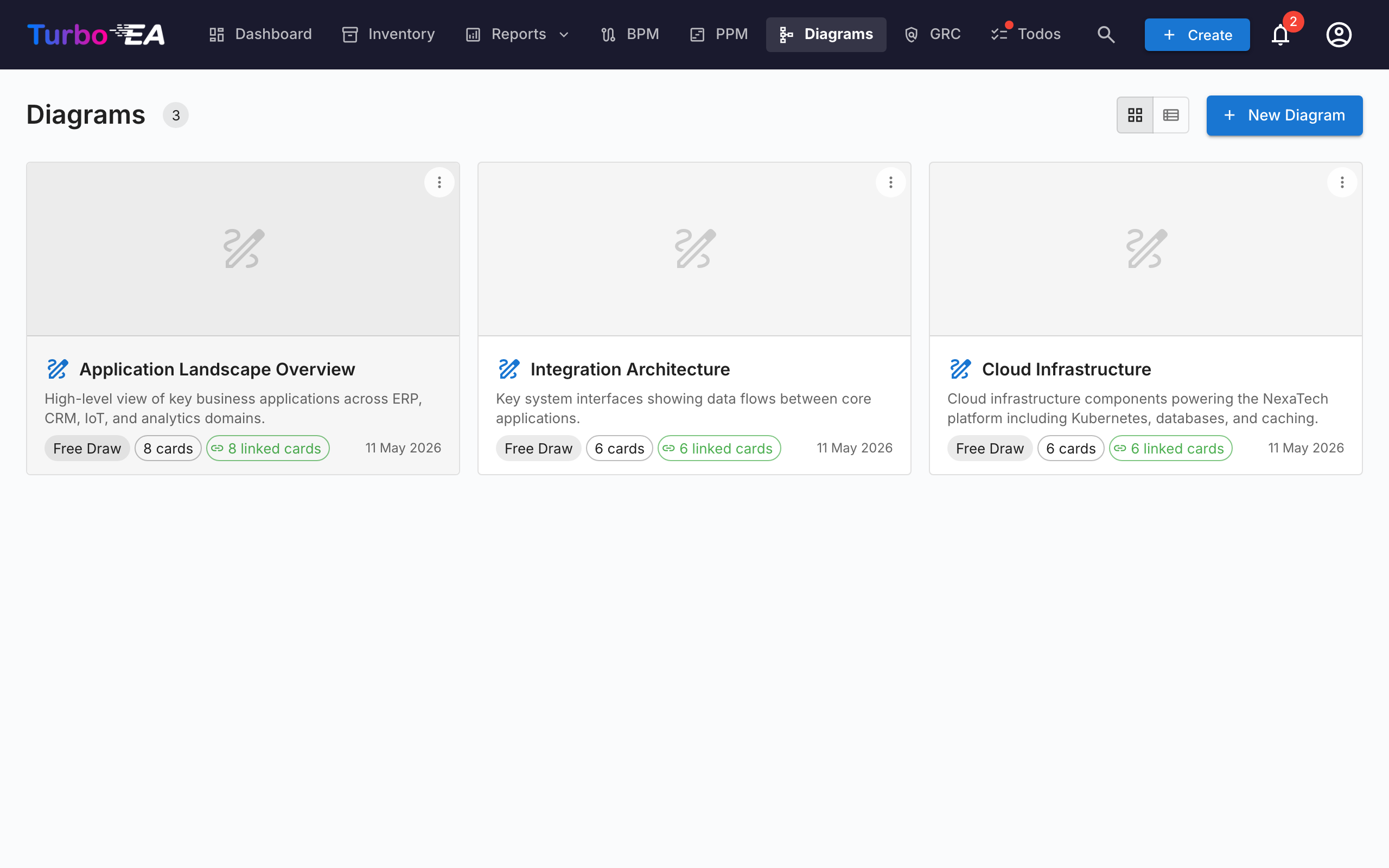
Diagram Gallery
The gallery lists every diagram with a thumbnail, name, type, and the cards it references. From here you can Create, Open, Edit details, or Delete any diagram.
The Diagram Editor
Opening a diagram launches the full-screen DrawIO editor in a same-origin iframe. The native DrawIO toolbar is available for shapes, connectors, text, and layout — every Turbo EA action is exposed via the right-click context menu, the toolbar Sync button, and the chevron overlay that sits on top of each card.
Inserting cards
Use the Insert Cards dialog (opened from the toolbar or the right-click menu) to add cards to the canvas:
- Type chips with live counts on the left rail filter the results.
- Search by name on the right rail; each row carries a checkbox.
- Insert selected adds the picked cards in a grid; Insert all adds every card matching the current filter (with a confirm step past 50 results).
The same dialog opens in single-select mode for Change Linked Card and Link to Existing Card.
Right-click actions
- Synced cards: Open Card, Change Linked Card, Unlink Card, Remove from diagram.
- Plain shapes / unlinked cells: Link to Existing Card, Convert to Card (keeps the shape's geometry, turns it into a pending card seeded with the shape's label), Convert to Container (turns the shape into a swimlane so other cards can be nested inside).
The Expand menu
Every synced card carries a small chevron overlay. Clicking it opens a menu with three sections, each populated in one round-trip:
- Show Dependency — neighbours via outgoing or incoming relations, grouped by relation type with counts. Each row is a checkbox; commit with Insert (N).
- Drill-Down — turns the current card into a swimlane container with its
parent_idchildren nested inside. Pick which children to include or Drill into all. - Roll-Up — wraps the current card + selected siblings (cards sharing the same
parent_id) inside a new parent container.
Rows with count = 0 are greyed out, and neighbours / children already on the canvas are skipped automatically.
Hierarchy on the canvas
Containers correspond to a card's parent_id:
- Dragging a card into a same-type container opens "Add «child» as a child of «parent»?". Yes queues a hierarchy change; No snaps the card back.
- Dragging a card out of a container prompts to detach (set
parent_id = null). - Cross-type drops snap back silently — the hierarchy is restricted to cards of the same type.
- All confirmed moves land in the Hierarchy Changes bucket in the Sync drawer with Apply and Discard actions.
Removing cards from the diagram
Deleting a card from the canvas is treated as a visual-only gesture — "I don't want to see this here". The card stays in inventory; its connected relation-edges silently disappear with it. Hand-drawn arrows that aren't registered EA relations are never auto-removed. Archival is a job for the Inventory page, not the diagram.
Edge deletions
Removing an edge that carries a real relation opens "Delete the relation between SOURCE and TARGET?":
- Yes queues the deletion in the Sync drawer; Sync All issues the backend
DELETE /relations/{id}. - No restores the edge in place (style and endpoints preserved).
View perspectives
The View dropdown in the toolbar recolors every card on the canvas by an attribute:
- Card colors (default) — each card uses its card-type color.
- Approval status — recolors by
approved/pending/broken. - Field values — pick any single-select field on the card types currently on the canvas (e.g., Lifecycle, Status). Cells with no value fall back to a neutral grey.
A floating legend in the bottom-left of the canvas shows the active mapping. The chosen view is saved with the diagram.
Sync drawer
The Sync button in the toolbar opens the side drawer with everything queued for the next sync:
- New Cards — shapes converted to pending cards, ready to be pushed to inventory.
- New Relations — edges drawn between cards, ready to be created in inventory.
- Removed Relations — relation-edges deleted from the canvas, queued for
DELETE /relations/{id}. Keep in inventory re-inserts the edge. - Hierarchy Changes — confirmed drag-into / drag-out container moves, queued as
parent_idupdates. - Inventory Changed — cards updated in inventory since the diagram was opened, ready to be pulled back into the canvas.
The toolbar Sync button shows a pulsing "N unsynced" pill whenever pending work exists. Leaving the tab with unsynced changes triggers a browser warning, and the canvas autosaves to local storage every five seconds so an accidental refresh can be restored on reopen.
Linking diagrams to cards
Diagrams can be linked to any card from the card's Resources tab (see Card Details). When linked to an Initiative card, the diagram also appears in the EA Delivery module alongside SoAW documents.