Settings
The Settings page at Admin → Settings (/admin/settings) is the central configuration hub. It is organised as a set of tabs — pick the right tab from the table below for the dedicated deep-dive:
| Tab | URL | What it controls | Full guide |
|---|---|---|---|
| General | /admin/settings?tab=general |
Appearance (logo, favicon, currency, date format, enabled languages, fiscal year), SMTP email, module toggles (BPM, PPM, GRC, TurboLens) | This page |
| Authentication | /admin/settings?tab=authentication |
SSO providers, registration, password policy | Authentication & SSO |
| AI | /admin/settings?tab=ai |
LLM provider, model, web search backend, per-card-type AI suggestion toggles | AI Capabilities |
| EOL | /admin/settings?tab=eol |
Mass-linking products to endoflife.date entries | End-of-Life (EOL) |
| Web Portals | /admin/settings?tab=web-portals |
Public read-only portal slugs, visibility filters | Web Portals |
| ServiceNow | /admin/settings?tab=servicenow |
ServiceNow connection, sync configuration, identity mapping | ServiceNow Integration |
| TurboLens | /admin/settings?tab=turbolens |
TurboLens-specific toggles, enabled regulations, analysis polling | See section TurboLens settings below |
The rest of this page covers the General tab.
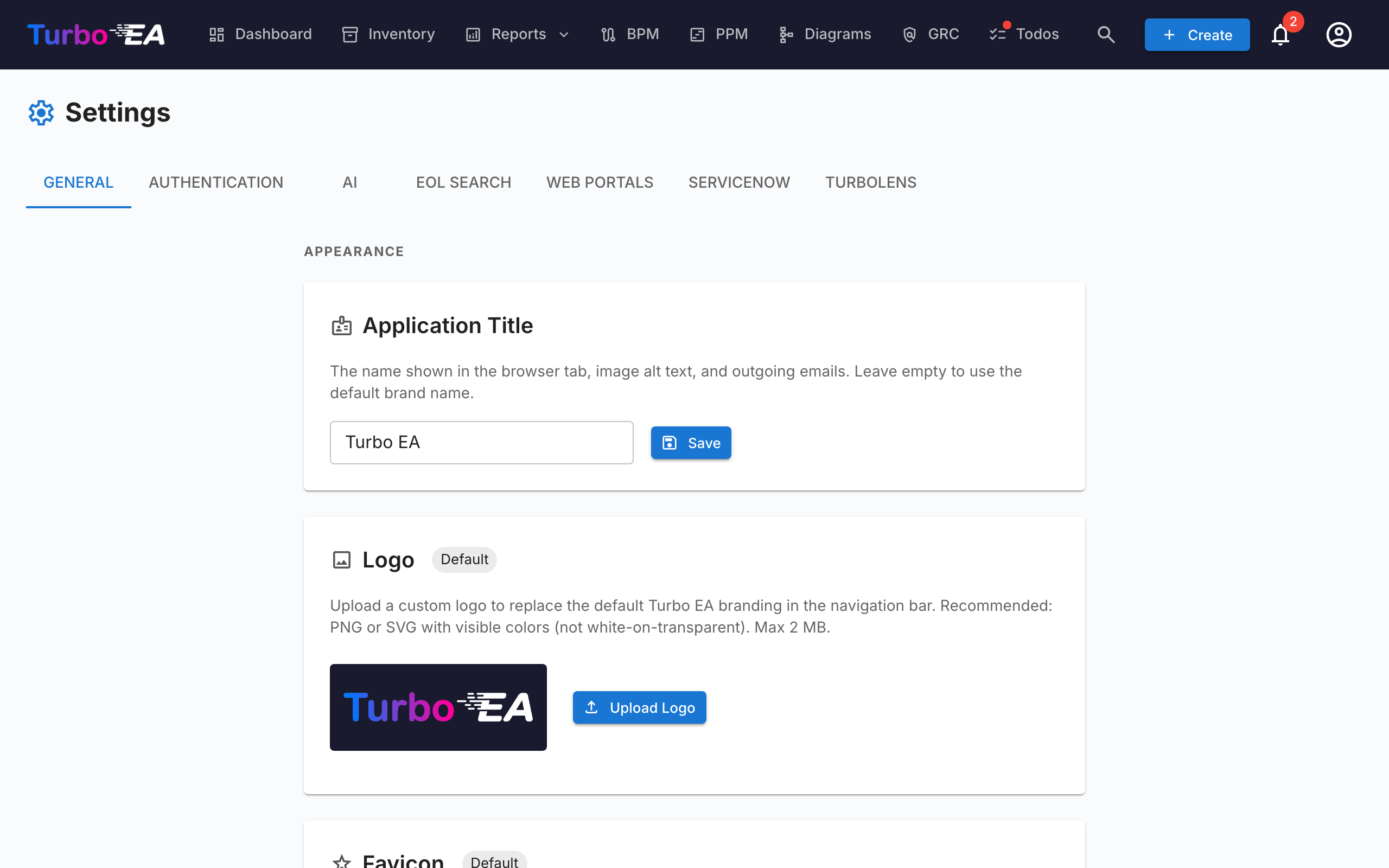
Appearance
Logo
Upload a custom logo that appears in the top navigation bar. Supported formats: PNG, JPEG, SVG, WebP, GIF. Click Reset to revert to the default Turbo EA logo.
Favicon
Upload a custom browser icon (favicon). The change takes effect on the next page load. Click Reset to revert to the default icon.
Currency
Select the currency used for cost fields across the platform. This affects how cost values are formatted in card detail pages, reports, and exports. Over 20 currencies are supported, including USD, EUR, GBP, JPY, CNY, CHF, INR, BRL, and more.
Date Format
Choose how dates are displayed throughout the application. The selected format applies to card lifecycle dates, the inventory grid, ADR and SoAW signed dates, the Risk Register, PPM reports and tasks, BPM process flow versions, comments, history, the dashboard activity feed, notifications, and admin pages. Five formats are offered with a live preview as you choose:
MM/DD/YYYY— US style (e.g.04/29/2026)DD/MM/YYYY— European style (e.g.29/04/2026)YYYY-MM-DD— ISO 8601 (e.g.2026-04-29)DD MMM YYYY— default (e.g.29 Apr 2026)MMM DD, YYYY(e.g.Apr 29, 2026)
Changes take effect immediately for everyone — no reload required.
Enabled Languages
Toggle which languages are available to users in their language selector. All eight supported locales can be individually enabled or disabled:
- English, Deutsch, Français, Español, Italiano, Português, 中文, Русский
At least one language must remain enabled at all times.
Fiscal Year Start
Select the month that begins your organization's fiscal year (January through December). This setting affects how budget lines in the PPM module are grouped by fiscal year. For example, if the fiscal year starts in April, a budget line dated June 2026 belongs to FY 2026–2027.
The default is January (calendar year = fiscal year).
Email (SMTP)
Configure email delivery for invitation emails, survey notifications, and other system messages.
| Field | Description |
|---|---|
| SMTP Host | Your mail server hostname (e.g., smtp.gmail.com) |
| SMTP Port | Server port (typically 587 for TLS) |
| SMTP User | Authentication username |
| SMTP Password | Authentication password (stored encrypted) |
| Use TLS | Enable TLS encryption (recommended) |
| From Address | The sender email address for outgoing messages |
| App Base URL | The public URL of your Turbo EA instance (used in email links) |
After configuring, click Send Test Email to verify the settings work correctly.
Note
Email is optional. If SMTP is not configured, features that send emails (invitations, survey notifications) will gracefully skip email delivery.
BPM Module
Toggle the Business Process Management module on or off. When disabled:
- The BPM navigation item is hidden from all users
- Business Process cards remain in the database but BPM-specific features (process flow editor, BPM dashboard, BPM reports) are not accessible
This is useful for organizations that do not use BPM and want a cleaner navigation experience.
PPM Module
Toggle the Project Portfolio Management module on or off. When disabled:
- The PPM navigation item is hidden from all users
- Initiative cards remain in the database but PPM-specific features (status reports, budget & cost tracking, risk register, task board, Gantt chart) are not accessible
When enabled, Initiative cards gain a PPM tab in their detail view and the PPM portfolio dashboard becomes available in the main navigation. See Project Portfolio Management for the full feature guide.
GRC Module
Toggle the Governance, Risk and Compliance module on or off. When disabled:
- The GRC navigation item is hidden from all users
- The
/grcworkspace (Governance principles and ADRs, Risk Register, Compliance findings) is unreachable and shows the standard "module disabled" placeholder for anyone with a direct link - The Risks and Compliance tabs on Card Detail are hidden, so individual cards no longer surface GRC data either
- Risks and compliance findings remain in the database — the underlying
risks.*andcompliance.*permissions are unchanged, so the data is preserved and re-appears unchanged if the module is re-enabled
See the GRC guide for the full feature reference.
TurboLens settings
The TurboLens tab gathers the toggles that govern the AI analysis surface. Unlike the per-module switches above, TurboLens is not a binary on/off — it is "ready" when both an AI provider is configured (under the AI tab) and the analysis data has synced at least once. The page also exposes:
- Enabled regulations — tick which of the six built-in frameworks (EU AI Act, GDPR, NIS2, DORA, SOC 2, ISO 27001) participate in Compliance scans. Custom regulations defined under Metamodel → Regulations can also be enabled here.
- Analysis polling cadence — how often the UI re-polls long-running TurboLens analyses for progress. Higher cadence = lower perceived latency, more API load.
- Result cache TTL — how long completed analysis results are cached before the Run analysis button re-enables.
See TurboLens AI Intelligence for the full feature surface and Compliance for the scan workflow.