Metamodel
The Metamodel defines your platform's entire data structure — what types of cards exist, what fields they have, how they relate to each other, and how card detail pages are laid out. Everything is data-driven: you configure the metamodel through the admin UI, not by changing code.
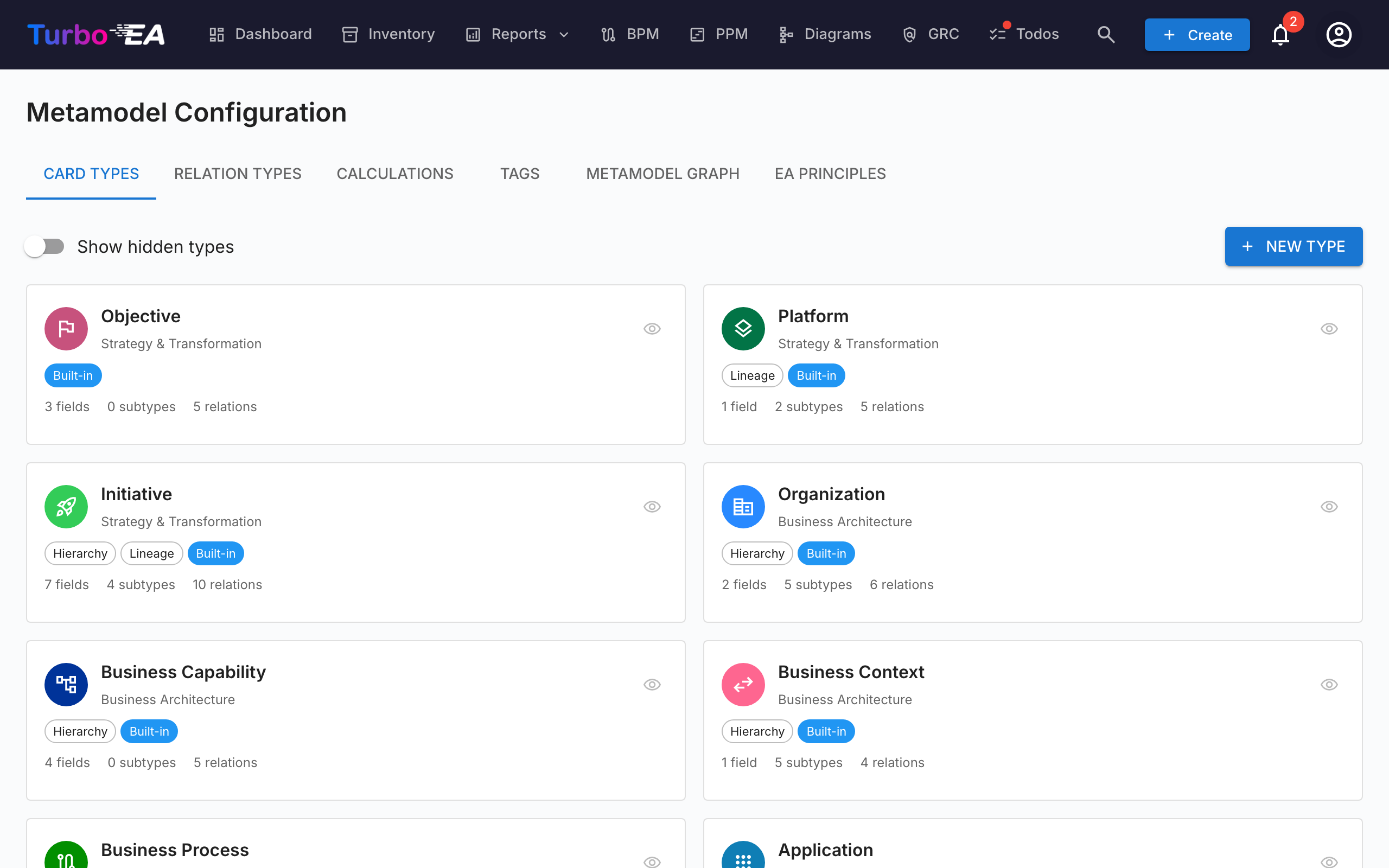
Navigate to Admin > Metamodel to access the metamodel editor. It has seven tabs: Card Types, Relation Types, Calculations, Tags, Metamodel Graph, EA Principles, and Compliance Regulations.
Card Types
The Card Types tab lists all types in the system. Turbo EA ships with 14 built-in types across four architecture layers:
| Layer | Types |
|---|---|
| Strategy & Transformation | Objective, Platform, Initiative |
| Business Architecture | Organization, Business Capability, Business Context, Business Process |
| Application & Data | Application, Interface, Data Object |
| Technical Architecture | IT Component, Tech Category, Provider, System |
Creating a Custom Type
Click + New Type to create a custom card type. Configure:
| Field | Description |
|---|---|
| Key | Unique identifier (lowercase, no spaces) — cannot be changed after creation |
| Label | Display name shown in the UI |
| Icon | Google Material Symbol icon name |
| Color | Brand color for the type (used in inventory, reports, and diagrams) |
| Category | Architecture layer grouping |
| Has Hierarchy | Whether cards of this type can have parent/child relationships |
Editing a Type
Click any type to open the Type Detail Drawer. Here you can configure:
Fields
Fields define the custom attributes available on cards of this type. Each field has:
| Setting | Description |
|---|---|
| Key | Unique field identifier |
| Label | Display name |
| Type | text, multiline_text, number, cost, boolean, date, url, single_select, or multiple_select |
| Options | For select fields: the available choices with labels and optional colors |
| Required | Whether the field must be filled for data quality scoring |
| Weight | How much this field contributes to the data quality score (0–10) |
| Read-only | Prevents manual editing (useful for calculated fields) |
Click + Add Field to create a new field, or click an existing field to edit it in the Field Editor Dialog.
Sections
Fields are organized into sections on the card detail page. You can:
- Create named sections to group related fields
- Set sections to 1-column or 2-column layout
- Organize fields into groups within a section (rendered as collapsible sub-headers)
- Drag fields between sections and reorder them
The special section name __description adds fields to the Description section of the card detail page.
Subtypes (Sub-Templates)
Subtypes act as sub-templates within a card type. Each subtype can control which fields are visible for cards of that subtype, while all fields remain defined at the card type level.
For example, the Application type has subtypes: Business Application, Microservice, AI Agent, and Deployment. An admin might hide server-related fields for the SaaS subtype since they are not relevant.
Configuring field visibility per subtype:
- Open a card type in the metamodel admin.
- Click on any subtype chip to open the Subtype Template dialog.
- Toggle field visibility using the switches — fields turned off will be hidden for cards of that subtype.
- Hidden fields are excluded from the data quality score, so users are not penalized for fields they cannot see.
When no subtype is selected on a card (or the type has no subtypes), all fields are visible. Hidden fields preserve their data — if a card's subtype changes, previously hidden values are retained.
Stakeholder Roles
Define custom roles for this type (e.g., "Application Owner", "Technical Owner"). Each role carries card-level permissions that are combined with the user's app-level role when accessing a card. See Users & Roles for more on the permission model.
Translations
Click the Translate button in the type drawer toolbar to open the Translation Dialog. Here you can provide translations for all metamodel labels in each supported language:
- Type label — The display name of the card type
- Subtypes — Labels for each subtype
- Sections — Section headings on the card detail page
- Fields — Field labels and select option labels
- Stakeholder Roles — Role names displayed in the stakeholder assignment UI
Translations are stored alongside each card type and are resolved at render time using the user's selected locale. Untranslated labels fall back to the English default.
Deleting a Type
- Built-in types are soft-deleted (hidden) and can be restored
- Custom types are permanently deleted
Relation Types
Relation types define the allowed connections between card types. Each relation type specifies:
| Field | Description |
|---|---|
| Key | Unique identifier |
| Label | Forward direction label (e.g., "uses") |
| Reverse Label | Backward direction label (e.g., "is used by") |
| Source Type | The card type on the "from" side |
| Target Type | The card type on the "to" side |
| Cardinality | n:m (many-to-many) or 1:n (one-to-many) |
Click + New Relation Type to create a relation, or click an existing one to edit its labels and attributes.
Calculations
Calculated fields use admin-defined formulas to automatically compute values when cards are saved. See Calculations for the full guide.
Tags
Tag groups and tags can be managed from this tab. See Tags for the full guide.
EA Principles
The EA Principles tab lets you define the architecture principles that govern your organisation's IT landscape. These principles serve as strategic guardrails — for example, "Reuse before Buy before Build" or "If we Buy, we Buy SaaS".
Each principle has four fields:
| Field | Description |
|---|---|
| Title | A concise name for the principle |
| Statement | What the principle states |
| Rationale | Why this principle is important |
| Implications | Practical consequences of following the principle |
Principles can be activated or deactivated individually using the toggle switch on each card.
Importing from the Principles Catalogue
Turbo EA ships a curated reference catalogue of 10 industry-standard EA principles so you don't have to start from a blank page. Open the avatar menu in the top-right corner and pick Reference Catalogues → Principles Catalogue. From there you can:
- Search and browse the bundled principles (title, description, rationale, implications).
- Multi-select the entries you want and click Import — selected principles land in the EA Principles tab as standard, fully-editable rows.
- Re-import safely: principles that already exist (matched by their stable catalogue ID) are skipped, even if you've renamed them locally. The catalogue shows a green "Already imported" badge for these.
Use the catalogue as a starting point and then tailor each principle's title, statement, rationale, and implications to your organisation.
How Principles Influence AI Insights
When you generate AI Portfolio Insights on the Portfolio Report, all active principles are included in the analysis. The AI evaluates your portfolio data against each principle and reports:
- Whether the portfolio aligns with or violates the principle
- Specific data points as evidence
- Recommended corrective actions
For example, a "Buy SaaS" principle would cause the AI to flag on-premise or IaaS-hosted applications and suggest cloud migration priorities.
Metamodel Graph
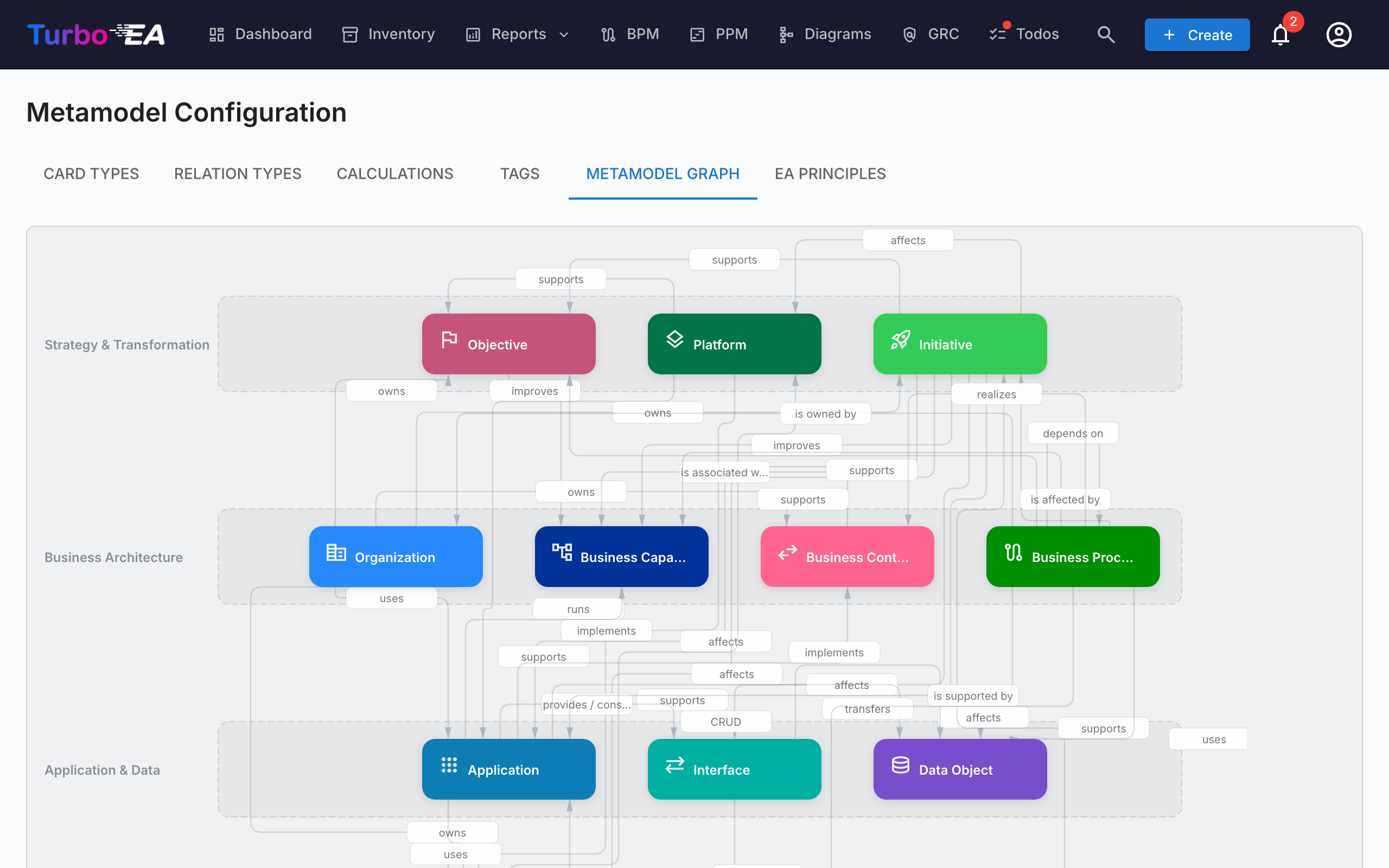
The Metamodel Graph tab shows a visual SVG diagram of all card types and their relation types. This is a read-only visualization that helps you understand the connections in your metamodel at a glance.
Compliance Regulations
The Compliance Regulations tab manages the regulatory frameworks that the GRC → Compliance scanner runs against. Six frameworks ship enabled by default:
| Regulation | Scope |
|---|---|
| EU AI Act | Requirements for AI / ML systems placed on the EU market |
| GDPR | EU General Data Protection Regulation |
| NIS2 | EU Network and Information Security Directive 2 |
| DORA | EU Digital Operational Resilience Act for financial entities |
| SOC 2 | AICPA Service Organization Controls Trust Services Criteria |
| ISO/IEC 27001 | Information security management system standard |
For each row you can:
- Enable / disable the regulation with the toggle — disabled frameworks are skipped on every subsequent scan and their findings are excluded from the dashboards. Existing findings are preserved (not deleted) in case you re-enable later.
- Edit the title, scope description and prompt context used by the LLM.
- Add a custom regulation with + New Regulation — for example, HIPAA, internal policies, or sector-specific frameworks. Custom regulations are first-class: they appear in the per-regulation tab, contribute to the overall compliance score, and support all the same finding actions (acknowledge, accept, promote to Risk).
- Delete a custom regulation — built-in regulations cannot be deleted, only disabled.
The compliance scanner and risk-promotion flow work even when no AI provider is configured — manual finding entry, status transitions and the promotion-to-Risk path all stay available. AI is only required when you actually trigger a new scan.
Card Layout Editor
For each card type, the Layout section in the type drawer controls how the card detail page is structured:
- Section order — Drag sections (Description, EOL, Lifecycle, Hierarchy, Relations, and custom sections) to reorder them
- Visibility — Hide sections that are not relevant for a type
- Default expansion — Choose whether each section starts expanded or collapsed
- Column layout — Set 1 or 2 columns per custom section