EA Delivery
The EA Delivery module manages architecture initiatives and their artifacts — diagrams, Statements of Architecture Work (SoAW), and Architecture Decision Records (ADR). It provides a single view of all ongoing architecture projects and their deliverables.
When PPM is enabled — the typical configuration — EA Delivery lives inside the PPM module: open PPM in the top nav and switch to the EA Delivery tab (/ppm?tab=ea-delivery). When PPM is disabled, EA Delivery appears as a dedicated top-level nav item linking to /reports/ea-delivery. The legacy /ea-delivery URL keeps working as a redirect either way, so existing bookmarks still resolve.
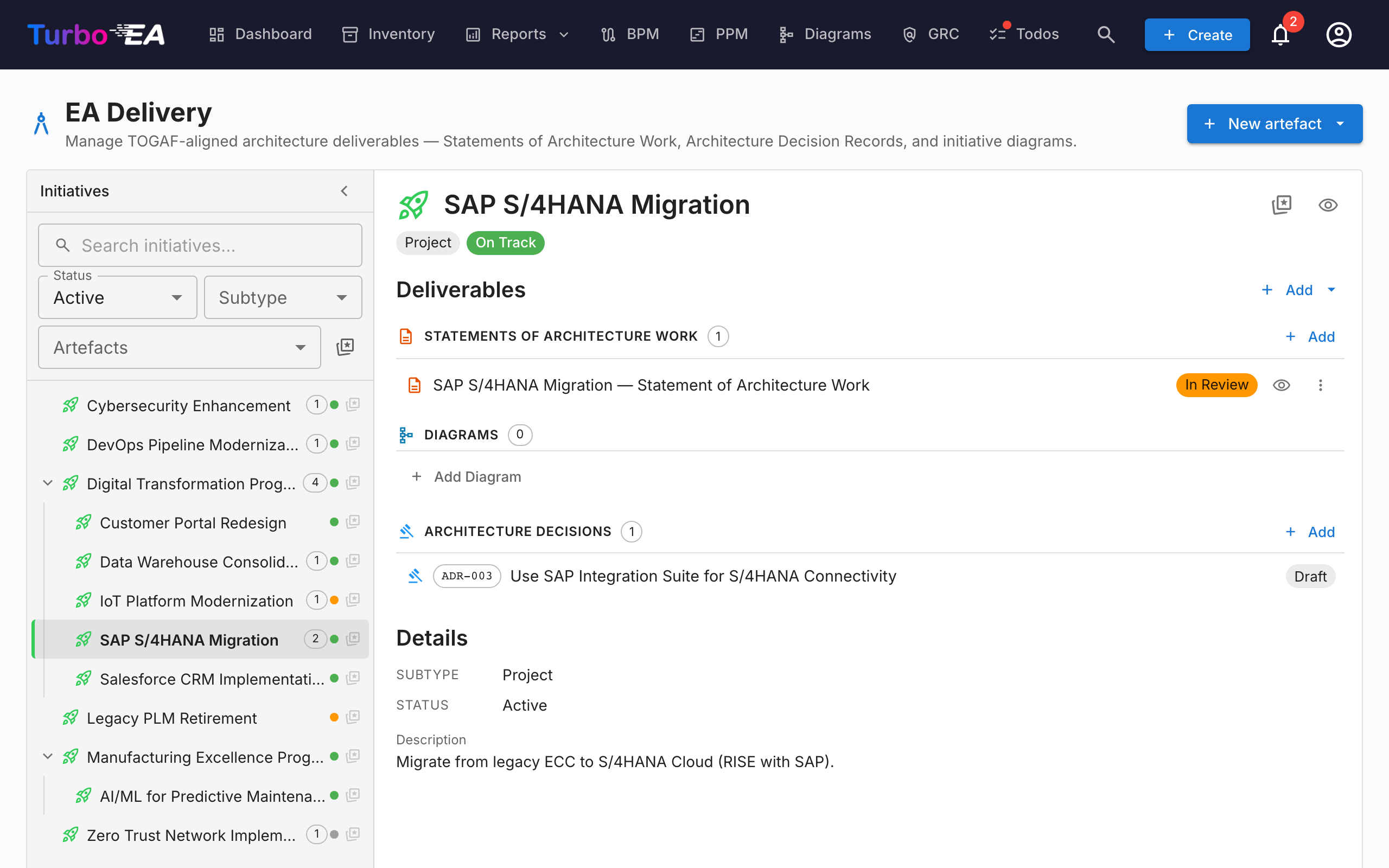
Initiatives workspace
EA Delivery is a two-pane workspace (no internal tabs):
- Left sidebar — an indented, filterable tree of every initiative (with their child initiatives nested below). Search by name, filter by Status / Subtype / Artefacts, or pin favourites.
- Right workspace — the deliverables, child initiatives, and details for the initiative you select on the left. Pick another row, and the workspace re-renders.
The selection is part of the URL (?initiative=<id>), so you can deep-link to a specific initiative or refresh the page without losing your place.
A single primary + New artefact ▾ button at the top of the page lets you create a new SoAW, Diagram, or ADR — pre-linked to the initiative you have selected (or unlinked if you have no selection yet). Empty deliverable groups inside the workspace also expose a + Add … button so creation is always one click away.
Each tree row shows:
| Element | Meaning |
|---|---|
| Name | Initiative name |
| Count chip | Total number of linked artefacts (SoAW + Diagrams + ADRs) |
| Status dot | Coloured dot for On Track / At Risk / Off Track / On Hold / Completed |
| Star | Favourite toggle — favourites bubble to the top |
The synthetic Unlinked artefacts row at the top of the tree appears when there are SoAWs, diagrams, or ADRs that aren't yet linked to an initiative. Open it to relink them.
Statement of Architecture Work (SoAW)
A Statement of Architecture Work (SoAW) is a formal document defined by the TOGAF standard (The Open Group Architecture Framework). It establishes the scope, approach, deliverables, and governance for an architecture engagement. In TOGAF, the SoAW is produced during the Preliminary Phase and Phase A (Architecture Vision) and serves as an agreement between the architecture team and its stakeholders.
Turbo EA provides a built-in SoAW editor with TOGAF-aligned section templates, rich text editing, and export capabilities — so you can author and manage SoAW documents directly alongside your architecture data.
Creating a SoAW
- Select the initiative on the left (optional — you can also create an unlinked SoAW).
- Click + New artefact ▾ at the top of the page (or the + Add button inside the Deliverables section) and choose New Statement of Architecture Work.
- Enter the document title.
- The editor opens with pre-built section templates based on the TOGAF standard.
The SoAW Editor
The editor provides:
- Rich text editing — Full formatting toolbar (headings, bold, italic, lists, links) powered by the TipTap editor
- Section templates — Pre-defined sections following TOGAF standards (e.g., Problem Description, Objectives, Approach, Stakeholders, Constraints, Work Plan)
- Inline editable tables — Add and edit tables within any section
- Status workflow — Documents progress through defined stages:
| Status | Meaning |
|---|---|
| Draft | Being written, not yet ready for review |
| In Review | Submitted for stakeholder review |
| Approved | Reviewed and accepted |
| Signed | Formally signed off |
Sign-off Workflow
Once a SoAW is approved, you can request sign-offs from stakeholders. Click Request Signatures, then use the search field to find and add signatories by name or email. The system tracks who has signed and sends notifications to pending signers.
Preview and Export
- Preview mode — Read-only view of the complete SoAW document
- DOCX export — Download the SoAW as a formatted Word document for offline sharing or printing
SoAW Tab on Initiative Cards
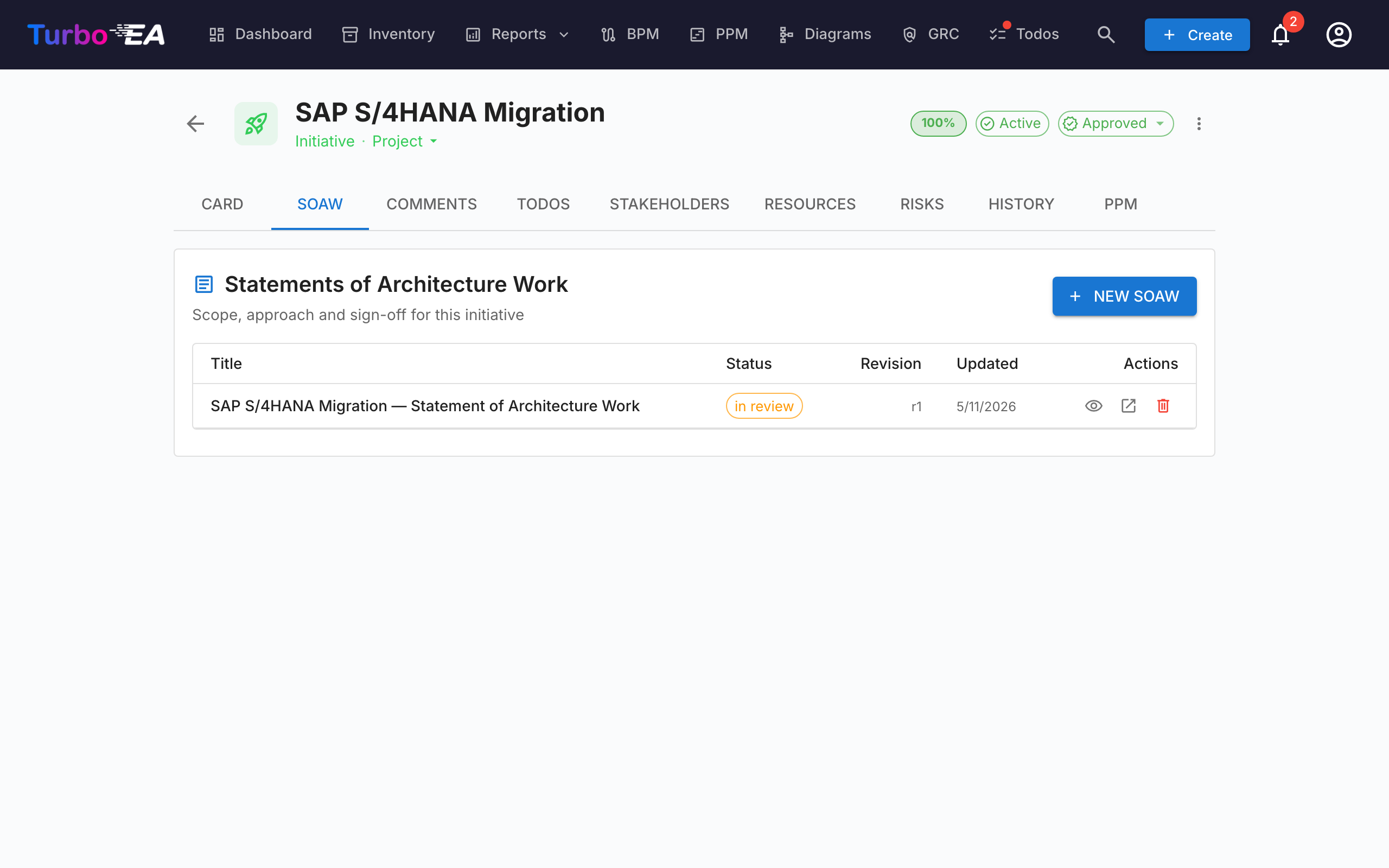
Initiatives also expose a dedicated SoAW tab directly on their card detail page. The tab lists every SoAW linked to that initiative (title, status chip, revision number, last-modified date) with a + New SoAW button that pre-selects the current initiative — so you can author or jump to a SoAW without leaving the card you're working on. Creation reuses the same dialog as the EA Delivery page, and the new document appears in both places. Visibility of the tab follows the standard card permission rules.
Architecture Decision Records (ADR)
An Architecture Decision Record (ADR) captures an important architecture decision along with its context, consequences, and alternatives considered. The EA Delivery workspace surfaces ADRs that are linked to the selected initiative inline, under the Architecture Decisions deliverable section, so you can read and open them without leaving the initiative view. Use the + New artefact ▾ split-button (or the + Add button on the section) to create a new ADR pre-linked to the selected initiative.
The master ADR registry — where every ADR across the landscape is filtered, searched, signed off, revised and previewed — lives in the GRC module at GRC → Governance → Decisions. See the GRC guide for the full ADR lifecycle (grid columns, filter sidebar, sign-off workflow, revisions, preview).
Resources Tab
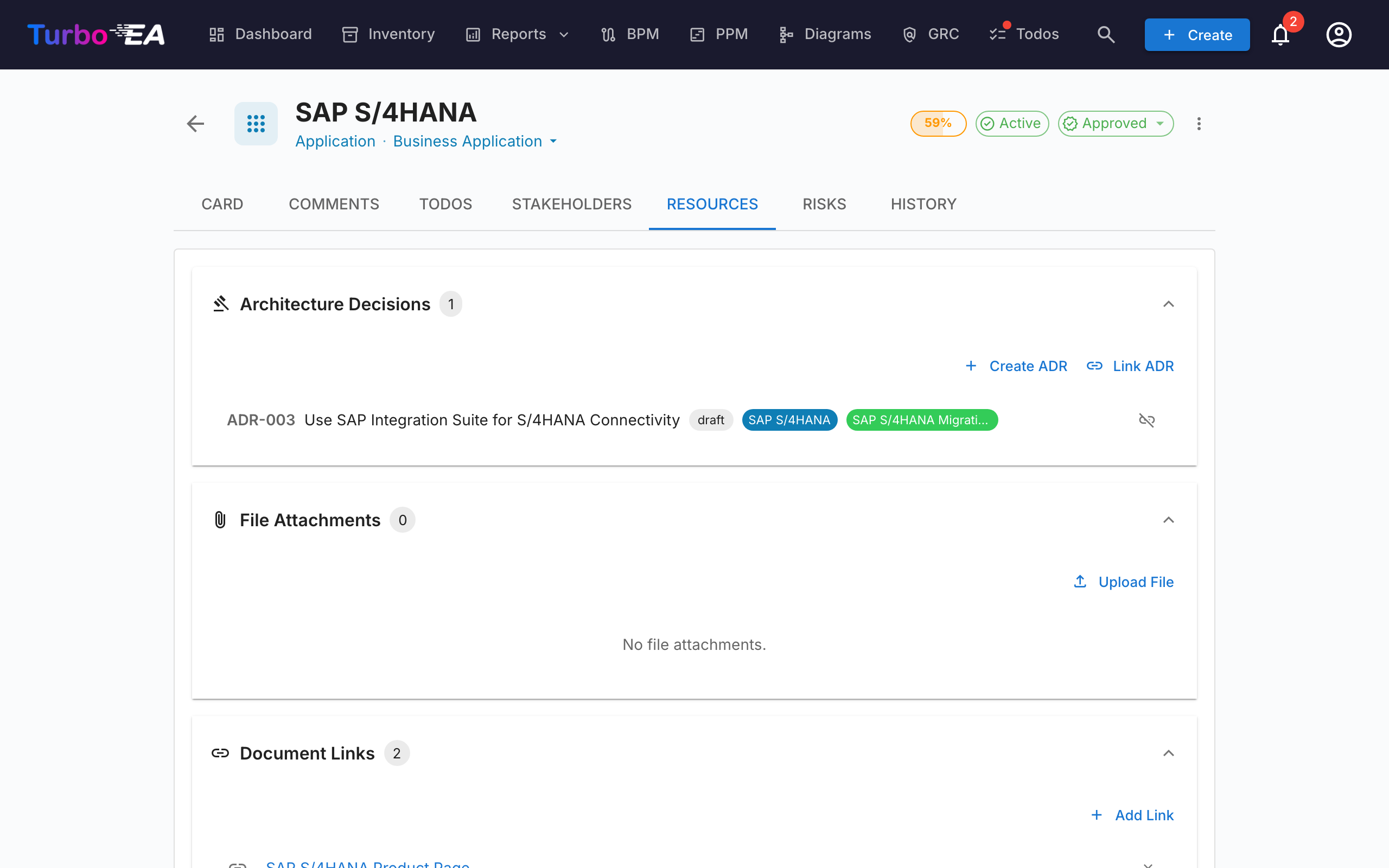
Cards now include a Resources tab that consolidates:
- Architecture Decisions — ADRs linked to this card, displayed as colored pills matching their card type colors. You can link existing ADRs or create a new ADR directly from the Resources tab — the new ADR is automatically linked to the card.
- File Attachments — Upload and manage files (PDF, DOCX, XLSX, images, up to 10 MB). When uploading, select a document category from: Architecture, Security, Compliance, Operations, Meeting Notes, Design, or Other. The category appears as a chip next to each file.
- Document Links — URL-based document references. When adding a link, select a link type from: Documentation, Security, Compliance, Architecture, Operations, Support, or Other. The link type appears as a chip next to each link, and the icon changes based on the selected type.