GRC¶
The GRC module brings Governance, Risk and Compliance into a single workspace at /grc. It consolidates work that previously lived across EA Delivery and TurboLens so an architect, a risk owner and a compliance reviewer can stand on common ground.
Note
The GRC module can be enabled or disabled by an administrator in Settings. When disabled, GRC navigation and features are hidden.
GRC has three tabs:
- Governance — EA Principles and Architecture Decision Records (ADRs).
- Risk — the TOGAF Phase G Risk Register.
- Compliance — the on-demand regulation gap-analysis scanner that used to sit in TurboLens.
You can deep-link any tab via /grc?tab=governance, /grc?tab=risk or /grc?tab=compliance.
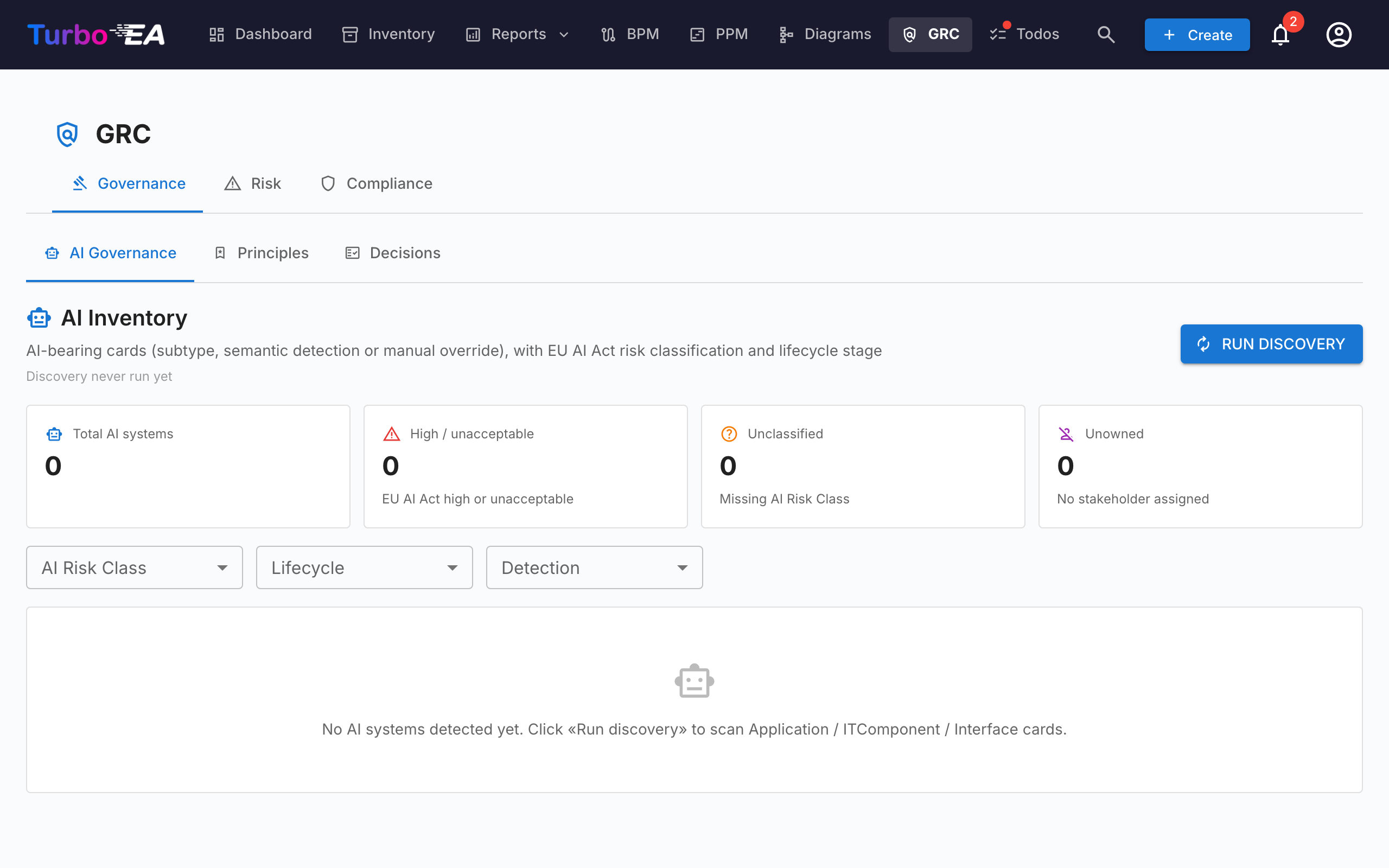
Governance¶
The Governance tab splits into two sub-tabs, deep-linkable via /grc?tab=governance&sub=principles (default) and /grc?tab=governance&sub=decisions:
Principles¶
Read-only browser of EA Principles published in the metamodel (statement, rationale, implications). Edit the catalogue from Administration → Metamodel → Principles.
Decisions¶
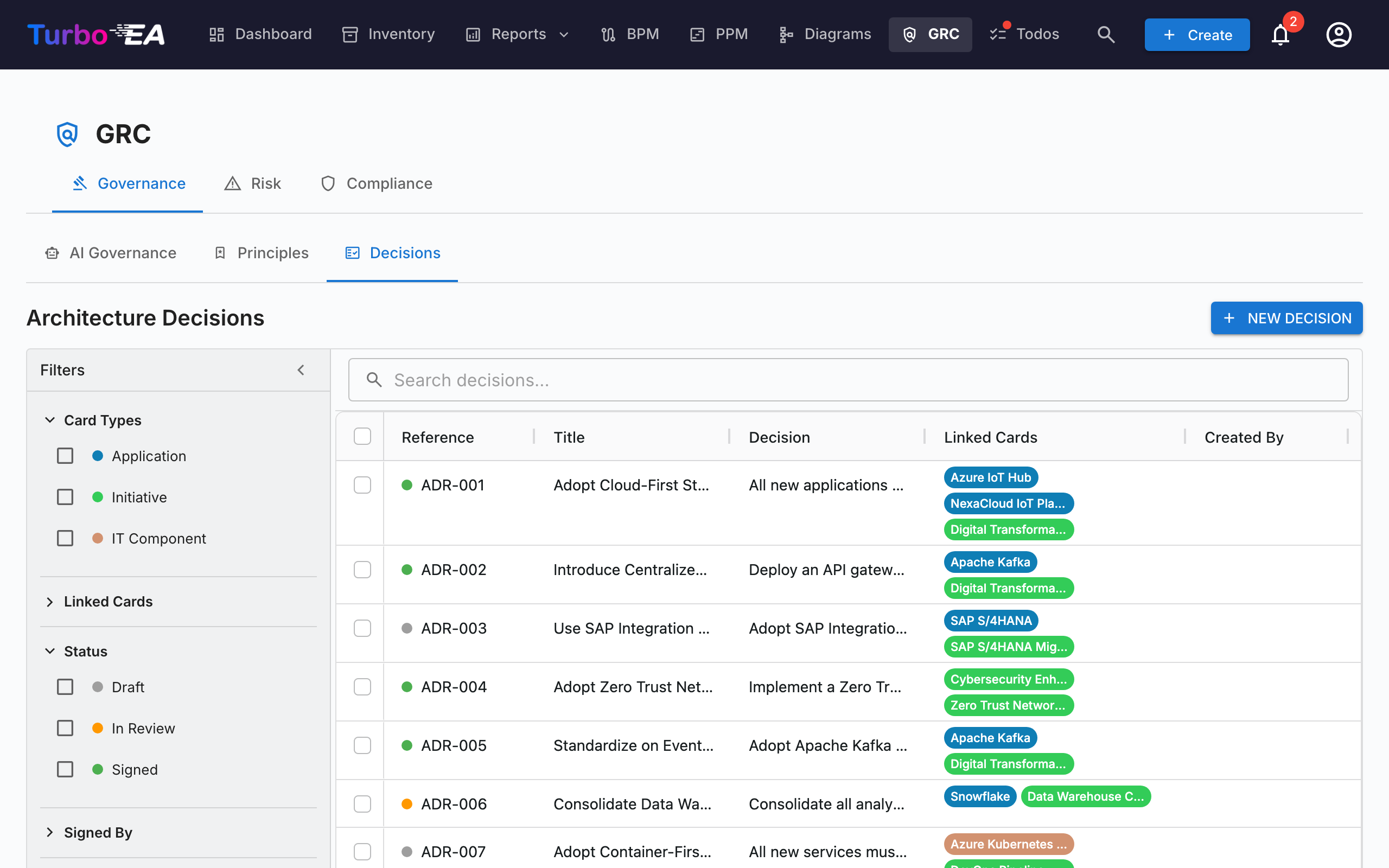
The Decisions sub-tab is the master registry of Architecture Decision Records (ADRs) — every ADR across the landscape, regardless of which initiative it's linked to. It replaces the old EA Delivery → Decisions tab that was dissolved when GRC landed.
ADRs document important architecture decisions along with their context, consequences, and alternatives considered. Decisions emitted by the TurboLens Architect wizard land here as drafts so reviewers can sign off.
Grid columns¶
The ADR grid mirrors the Inventory grid layout:
| Column | Description |
|---|---|
| Reference # | Auto-generated reference number (ADR-001, ADR-002, …) |
| Title | ADR title |
| Status | Coloured chip — Draft, In Review, or Signed |
| Linked Cards | Coloured pills matching each linked card's type colour |
| Created | Creation date |
| Modified | Last-modified date |
| Signed | Date the ADR was signed |
| Revision | Revision number |
Filter sidebar¶
A persistent filter sidebar on the left exposes:
- Card Types — checkboxes with coloured dots that filter by linked card types
- Status — Draft / In Review / Signed
- Date Created / Date Modified / Date Signed — from/to date ranges
Use the quick filter search bar for full-text search across all ADRs. Right-click any row for a context menu (Edit, Preview, Duplicate, Delete).
Creating an ADR¶
ADRs can be created from three places — all open the same editor and feed the same registry:
- GRC → Governance → Decisions: click + New ADR, fill in the title and optionally link cards (including initiatives).
- EA Delivery workspace: select an initiative, then click + New artefact ▾ in the page header (or + Add in the Architecture Decisions deliverable section) and choose New Architecture Decision — the initiative is pre-linked.
- Card → Resources tab: click Create ADR — the current card is pre-linked.
In every case, you can search and link additional cards during creation. Initiatives are linked through the same card-linking mechanism as any other card, so an ADR can reference multiple initiatives. The editor opens with sections for Context, Decision, Consequences, and Alternatives Considered.
The ADR editor¶
The editor provides:
- Rich-text editing for each section (Context, Decision, Consequences, Alternatives Considered)
- Card linking — connect the ADR to relevant cards (applications, IT components, initiatives, …). Initiatives are linked via the standard card-linking feature, not a dedicated field, so an ADR can reference multiple initiatives
- Related decisions — reference other ADRs
Sign-off workflow¶
ADRs support a formal sign-off process:
- Create the ADR in Draft status.
- Click Request Signatures and search for signatories by name or email.
- The ADR moves to In Review — each signatory receives a notification and a task.
- Signatories review and click Sign.
- Once every signatory has signed, the ADR automatically moves to Signed.
Signed ADRs are locked and cannot be edited — to make changes, create a new revision.
Revisions¶
Open a signed ADR and click Revise to create a new draft based on the signed version. The new revision inherits the content and card links and gets an incrementing revision number. Each revision keeps its own sign-off trail.
Preview¶
Click the preview icon to view a read-only, formatted version of the ADR — useful for reviewing before signing.
Risk¶
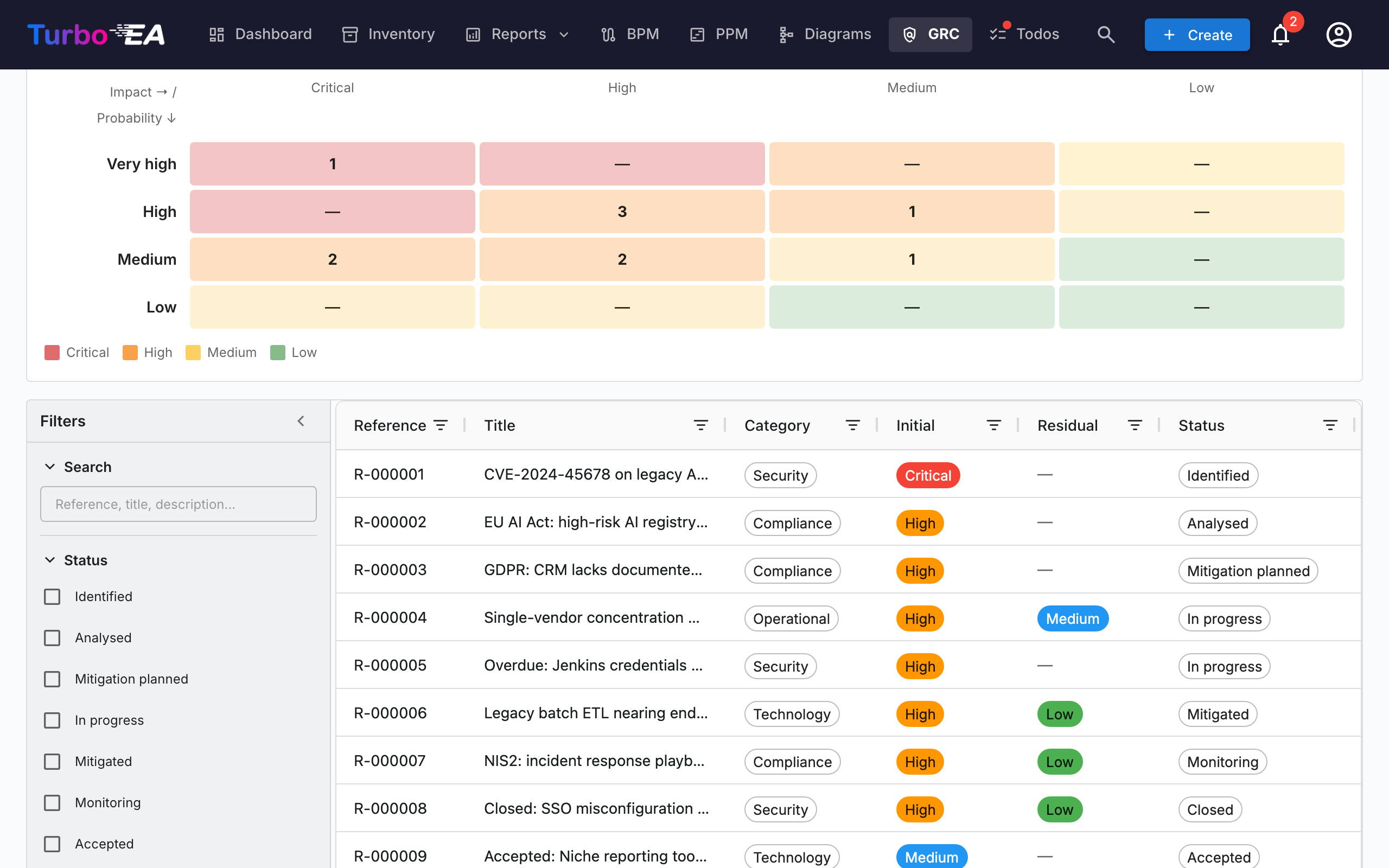
Embeds the TOGAF Phase G Risk Register. The full lifecycle, status workflow, matrix toggles and ownership behaviour are documented in the Risk Register guide. The most relevant points:
- The register lives at
/grc?tab=risk(it used to live under EA Delivery). - Risks can be created manually or promoted from a compliance finding under the Compliance tab.
- Promotion is idempotent — once a finding has been promoted its button flips to Open risk R-000123.
Compliance¶
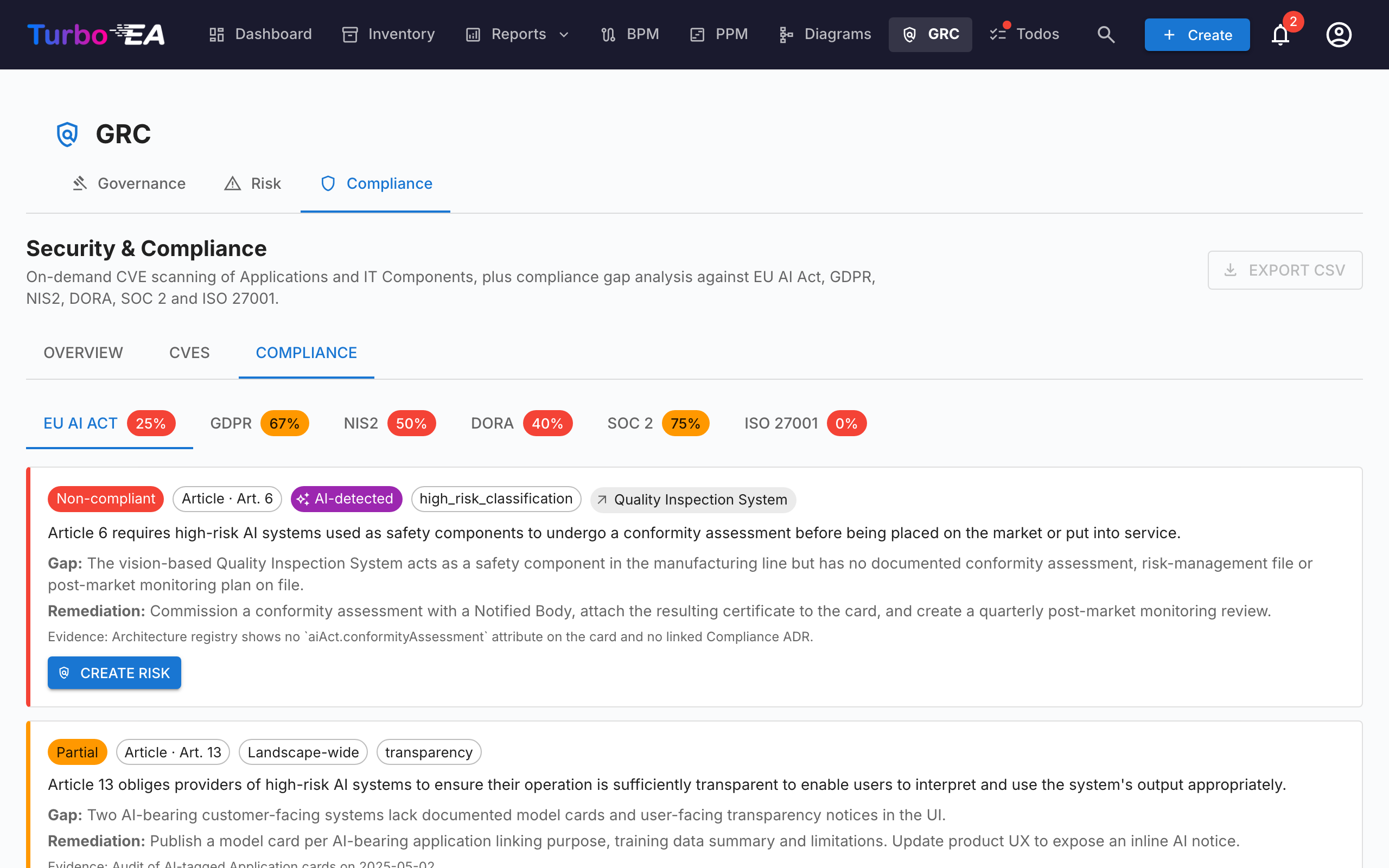
The Compliance tab is a dual-source register — findings can be authored manually by a reviewer or produced by an on-demand AI scan against any of the enabled regulations (EU AI Act, GDPR, NIS2, DORA, SOC 2, ISO 27001 ship enabled by default). Both kinds of finding share the same lifecycle, can be promoted to a Risk, and are bulk-actionable from the grid. See the Compliance guide for the full lifecycle, the manual-create dialog, the scan workflow, the EU AI Act semantic detector, and the promotion-to-Risk loop.
The same Compliance tab also appears on Card Detail (auto-hides when the card has no linked findings) so an Application owner can triage their own findings without leaving the card.
Permissions¶
| Permission | Default roles |
|---|---|
grc.view |
admin, bpm_admin, member, viewer |
grc.manage |
admin, bpm_admin, member |
risks.view / risks.manage |
see Risk Register § Permissions |
compliance.view / compliance.manage |
see TurboLens § Security & Compliance |
grc.view controls visibility of the GRC route itself — without it the top-nav entry is hidden. Each tab additionally enforces its domain-specific permission so a viewer can read the register without being able to trigger an LLM scan, for example.